Every business tracks different details, and Pipedrive custom fields help teams record the exact information they need — like project types, order numbers, or client notes. This guide shows how to add, edit, and manage custom fields so your CRM matches the way your team works day to day.
Pipedrive’s default fields cover standard details like names, values, and stages, but most teams track more than that. Custom fields let you record information that’s specific to your business so your CRM matches the way you actually work. They help you keep everything organised without needing workarounds or extra notes.
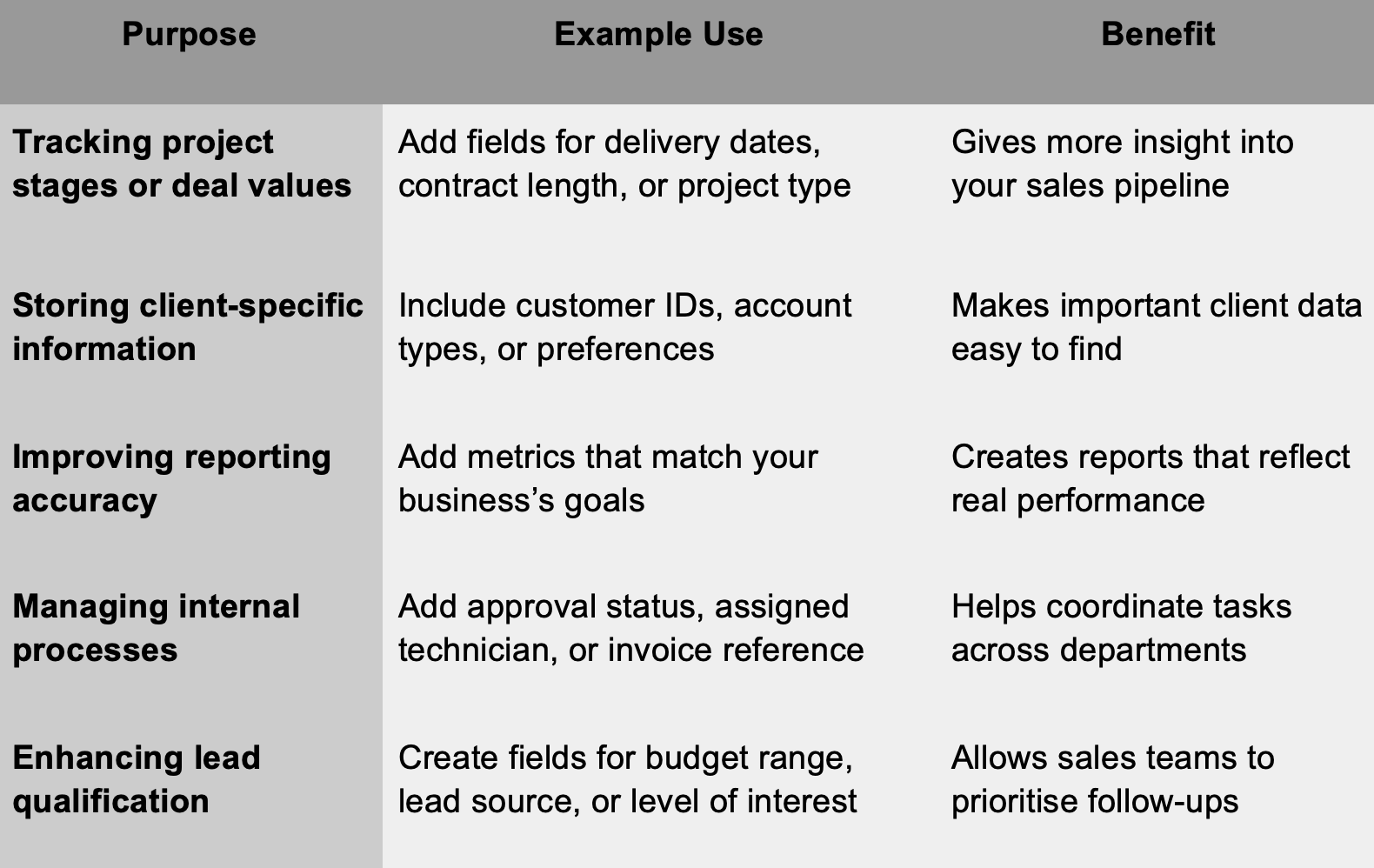
Custom fields keep the data you rely on in one place and make Pipedrive work better for your day-to-day needs.
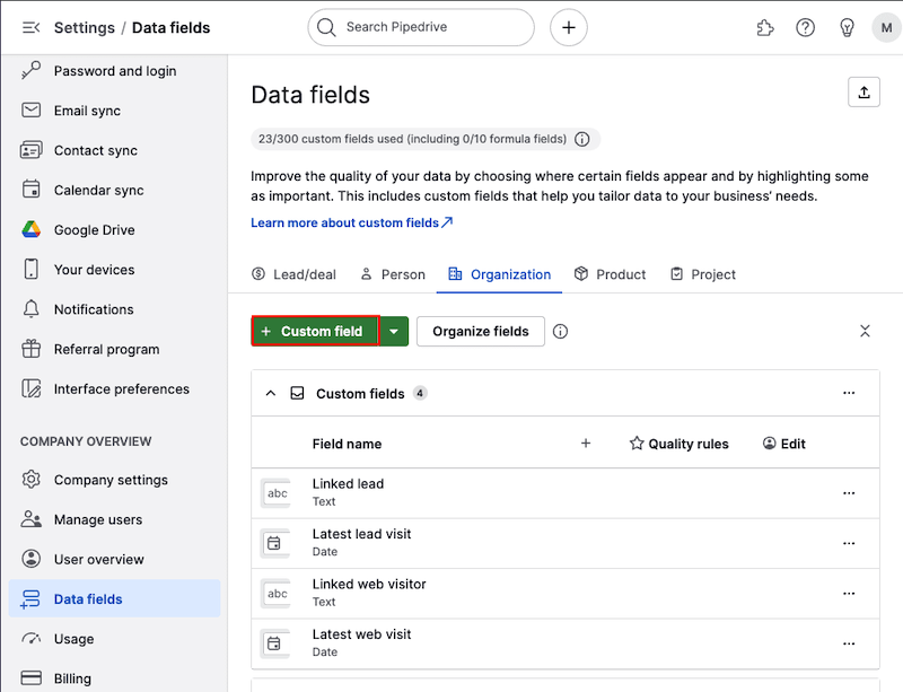
You can add custom fields to capture details that aren’t included in Pipedrive’s default setup. Start by opening the account menu in the top-right corner, then go to Personal preferences → Data fields. Choose where the field will live — for example, under Leads/Deals, People, Organisations, Products, or Projects.
Once you’ve selected the right section, click + Custom field.
A window will appear where you can set the field’s details. Some options depend on the plan you have with Pipedrive, but you’ll always need to give the field a name and choose its type.
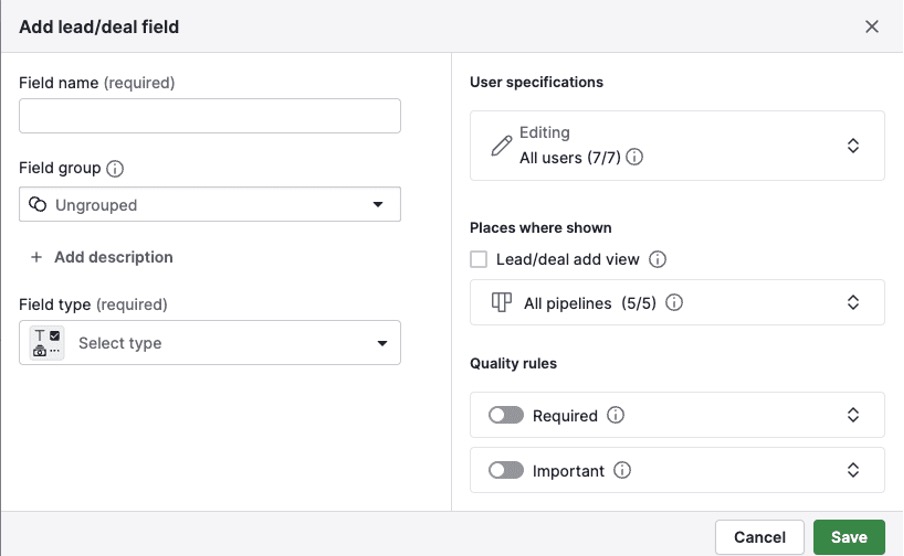
Here’s a quick look at the main settings you’ll see when creating a field:

You can fill in as many of these as needed, but to save the new field you must at least set a name and type. For best results, complete the description and grouping so your team understands how to use it.
Note: When you create a custom field for Deals, it’s automatically created for Leads too with the same name and properties.
You don’t always need to open settings to create a new field. If you’re already working in one of these areas, you can add it directly:
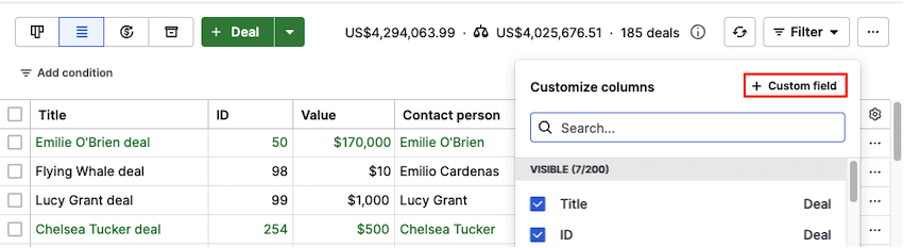

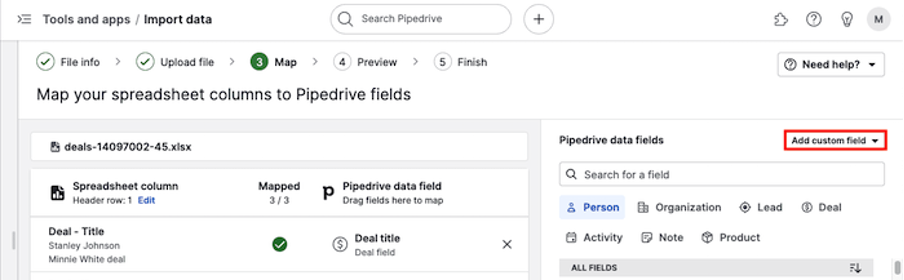
You can manage your custom fields from the Data fields section under Personal preferences. From here, you can rename, reorder, or delete any existing fields. To edit, click the … icon next to the field name and choose what you want to update. You can change the field’s name, group, description, or where it appears in Pipedrive.
Keep in mind that field types can’t be changed after creation, so it’s best to choose the right type at setup.
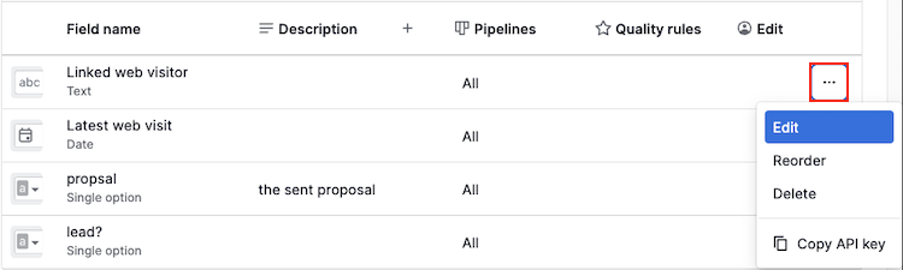
To change the order of fields, click Reorder, drag them into the preferred order, and select Save. The updated order appears in both add and detail views.

If you no longer need a field, you can delete it — but this permanently removes the field and its data.
You can also group fields to make them easier to find. Click + Field group while creating or editing a field to add it to a specific category.
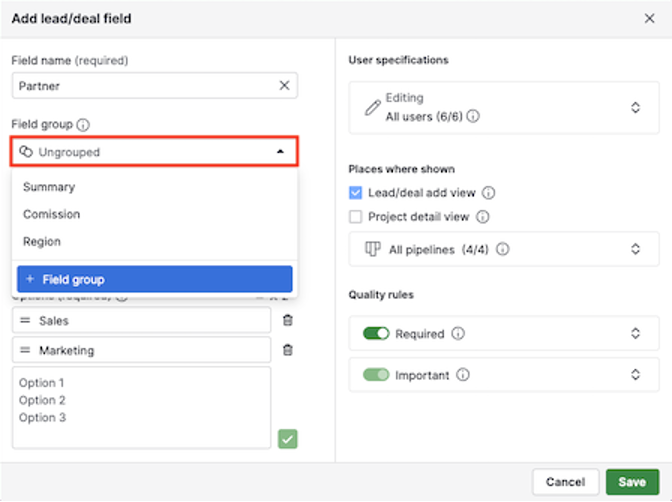
Once created, your custom fields appear throughout Pipedrive — wherever you add, view, or organise data.
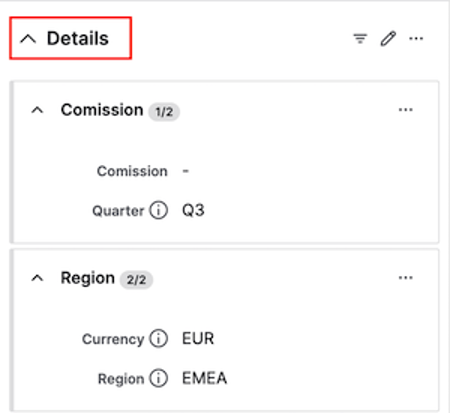
In the detail view, custom fields appear on the left side with the rest of your deal or contact information. This makes it easy to check all key details in one place.
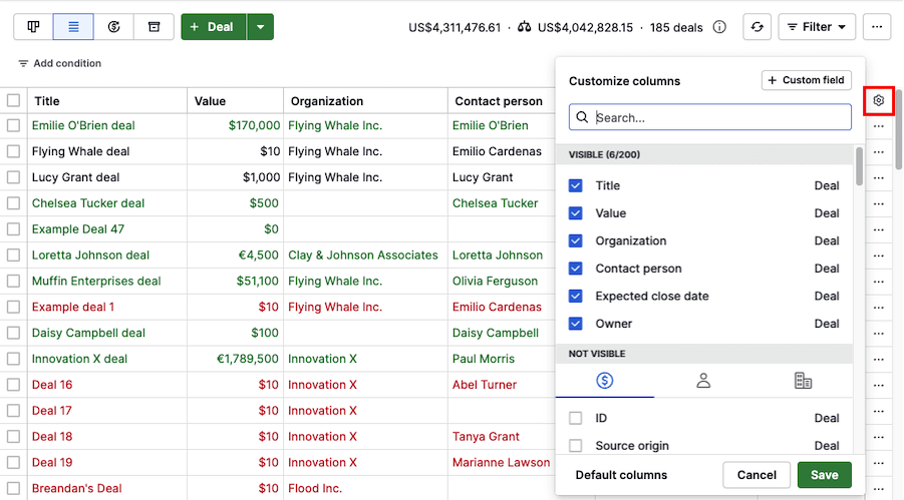
In the list view, click the gear icon above your table and select your custom fields under Choose columns. They’ll then display as new columns for easier sorting and filtering.
When adding new deals or leads, you can show custom fields in the add view so team members enter all required information from the start.

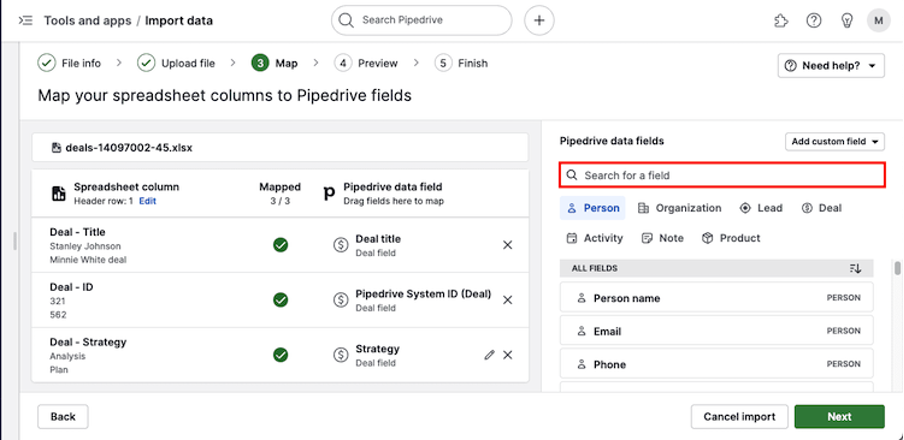
During imports, your custom fields appear in the mapping step, allowing you to connect spreadsheet columns directly to them.
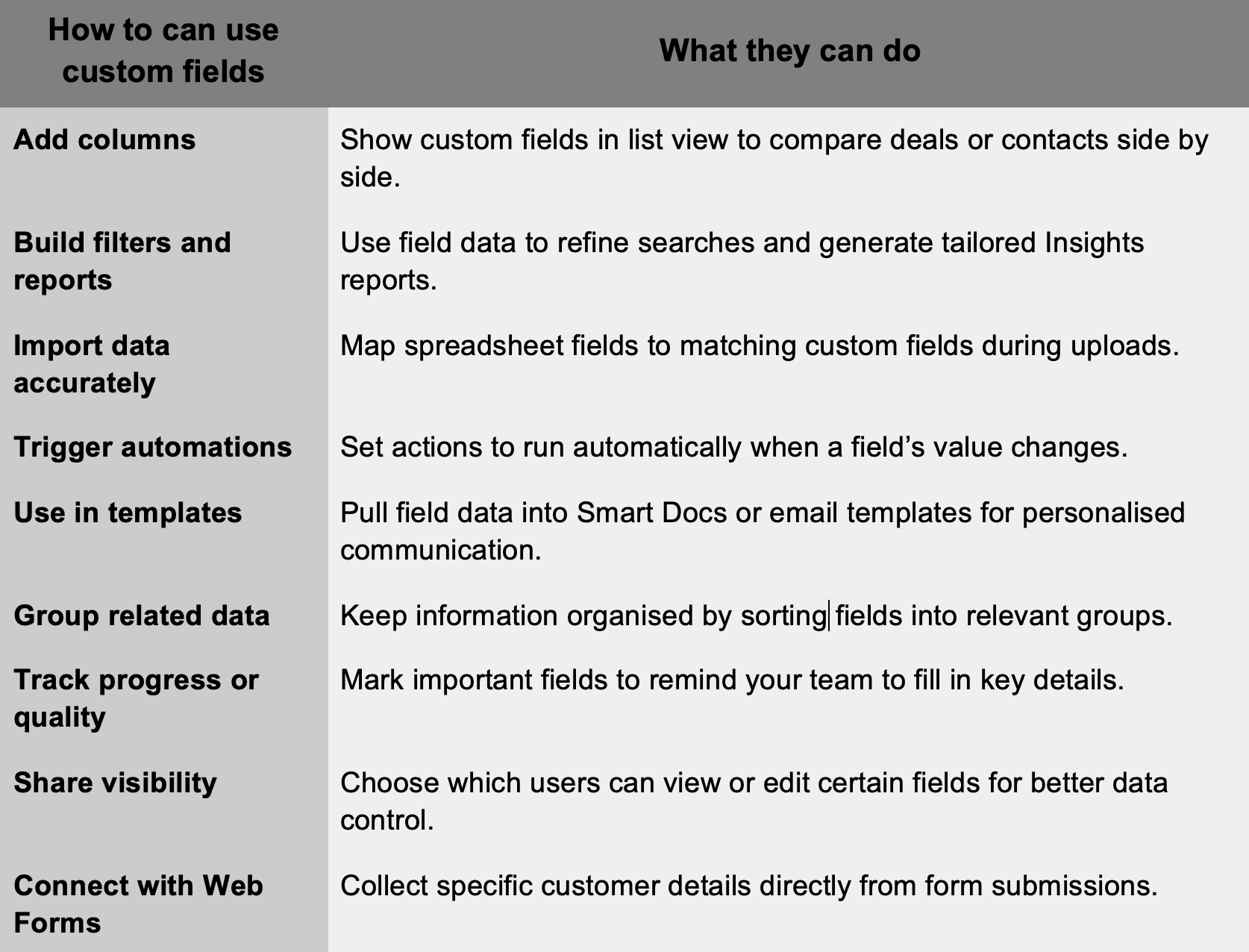
After you’ve set up your custom fields, they become part of your everyday workflow. You’ll see them across Pipedrive, helping with things like sorting deals, filtering information, setting up automations, and adding a personal touch to emails and documents. Here are a few of the most practical ways to use them.
No. Once a field is created, its type can’t be changed. You’ll need to create a new field if you want to use a different format.
Yes. Custom fields are visible in the mobile app when they’re enabled for that view.
Deleting a field permanently removes it and all data stored in it from your account.
Yes. Admins can assign visibility and editing permissions so only chosen users can see or update certain fields.
Custom fields give teams the freedom to shape Pipedrive around how they actually work. Instead of trying to fit data into fixed templates, you can build fields that match your process and priorities. With a thoughtful setup, it’s easier to track key details and keep every stage of the sales pipeline organised and efficient.
Want to see how Pipedrive custom fields can make your sales tracking more precise and your CRM easier to manage? Book a no-obligation demo with Process Culture today and learn how to tailor Pipedrive to your team’s workflow.